On Steam Deck
The new version runs on a Deck as a non-Steam game, sticks, buttons and all. Five minutes in Desktop Mode and it lives in your library.
Add it to Steam
-
Switch to Desktop Mode
Press the STEAM button, then Power → Switch to Desktop.
-
Download City Wars
Open this page in the desktop's browser and press Download for Steam Deck. Move
city-wars-linux.AppImagesomewhere it can stay, like aGamesfolder in your home: Steam remembers where it is. -
Let it run
In the file manager, right-click the file → Properties → Permissions and tick Is executable.
-
Add it to your library
Open Steam, then Games → Add a Non-Steam Game to My Library… → Browse… and pick the AppImage (set File type to All Files if it isn't listed). Press Add Selected Programs.
-
Back to Gaming Mode
Double-click Return to Gaming Mode on the desktop. City Wars is in your library under Non-Steam. Paint the town.
Made for the Deck's controls
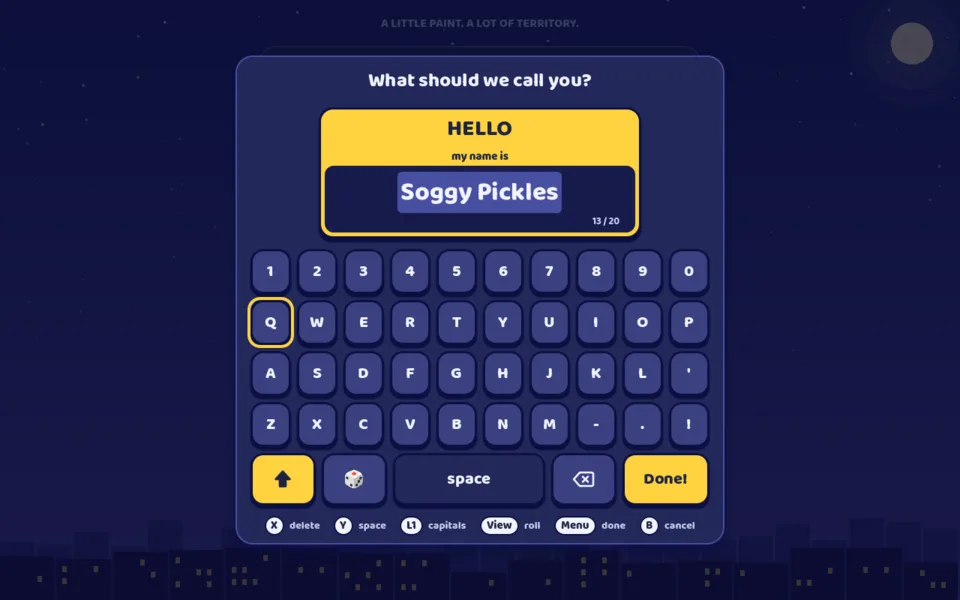
Every screen works with the buttons alone: A picks, B goes back, Menu pauses, and hints name the Deck's own buttons. Your name gets its own keyboard, with a dice that spins up a silly one. It starts fullscreen and picks graphics that suit the Deck; change them under Menu → Settings.
If the controls feel off, open City Wars in your library → the controller icon → pick the Gamepad layout.
Updates
When a new version comes out, download it again and put it in place of the old file, with the same name. Steam keeps the shortcut, and your name, team and settings stay as they were.